

March 20, 2026
In
WordPress Troubleshooting
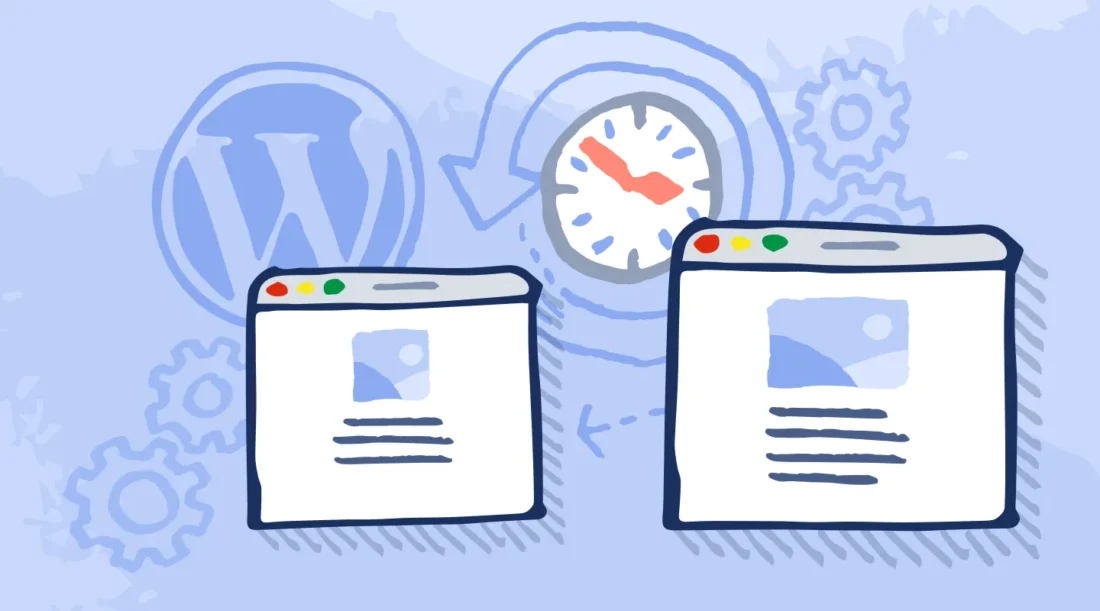
How to Recover a Broken WordPress Website After an Update
Introduction
Sometimes updates to plugins, themes, or WordPress core can break your website. This is often caused by compatibility issues.
Step 1: Access Recovery Mode
Check your email for a recovery mode link from WordPress.
Step 2: Disable Problematic Plugin
Deactivate the plugin or theme that caused the issue.
Step 3: Restore Backup
Restore a recent backup if available.
Step 4: Enable Debug Mode
Add to wp-config.php:
define('WP_DEBUG', true);
Step 5: Roll Back Update
Reinstall a previous version of the plugin or theme.
Conclusion
Always back up your site before updates to avoid major issues.
Still stuck? Submit a free support ticket at wpfixa.com.
- How to Fix WordPress Theme Layout Problems
 Fix WordPress theme layout problems by checking plugins, CSS, and theme settings to restore proper design.
 - How to Fix WordPress JavaScript Errors
 Learn how to fix WordPress JavaScript errors by checking console logs, plugins, and theme compatibility.
 - How to Fix WordPress CSS Not Loading Properly
 Fix WordPress CSS not loading issues by clearing cache, checking file paths, and troubleshooting plugins.
 - How to Fix WordPress Permalink Issues
 Learn how to fix WordPress permalink issues causing broken links and 404 errors using simple troubleshooting steps.
 - How to Fix WordPress Email Not Sending
 Fix WordPress email not sending issues using SMTP configuration. Learn how to send emails reliably from your WordPress site.
 - How to Fix WordPress Images Not Showing
 Learn how to fix WordPress images not showing by checking URLs, permissions, plugins, and CDN settings.